
10 Best Password Generators Compared for 2026
November 20, 2026 · 18 min read
Which password generator can you trust, and what happens to the password after you click Generate? A complicated-looking string doesn't tell you where it was created, whether it was transmitted, or whether you'll still have it after closing the tab.
The best password generators solve different problems. Standalone browser tools help you create a credential without opening an account. Generator-plus-vault tools handle the less visible work of saving that credential, associating it with the right website, and retrieving it later.
Uniqueness matters as much as the generator's settings. Verizon's credential-stuffing analysis reports that compromised credentials were an initial access vector in 22% of reviewed breaches in 2025. A long password reused across services still gives attackers something useful to try elsewhere.
The options below are grouped by practical fit rather than a claim that one produces universally stronger passwords:
- Quick generation and policy matching: Strong Password Generator and Allinone.tools prioritize browser-based creation.
- Generation with optional storage: Bitwarden, Proton Pass, and several other providers connect standalone tools to a password manager.
- Vault-first generation: 1Password makes the most sense when you want creation and storage in the same workflow.
Provider statements about local generation are identified as statements, not independent security audits. Likewise, a strength indicator is useful feedback, not proof that a password is safe under every attack condition.
Table of Contents
- 1. Strong Password Generator
- 2. Password Generator
- 3. Bitwarden Password Generator
- 4. Proton Pass Password Generator
- 5. Avast Random Password Generator
- 6. Keeper Password Generator
- 7. Dashlane Password Generator
- 8. NordPass Password Generator
- 9. LastPass Password Generator
- 10. RoboForm Password Generator
- 11. 1Password Password Generator
- All 10 password generators at a glance
- Choosing the Right Generator for Your Workflow
1. Strong Password Generator
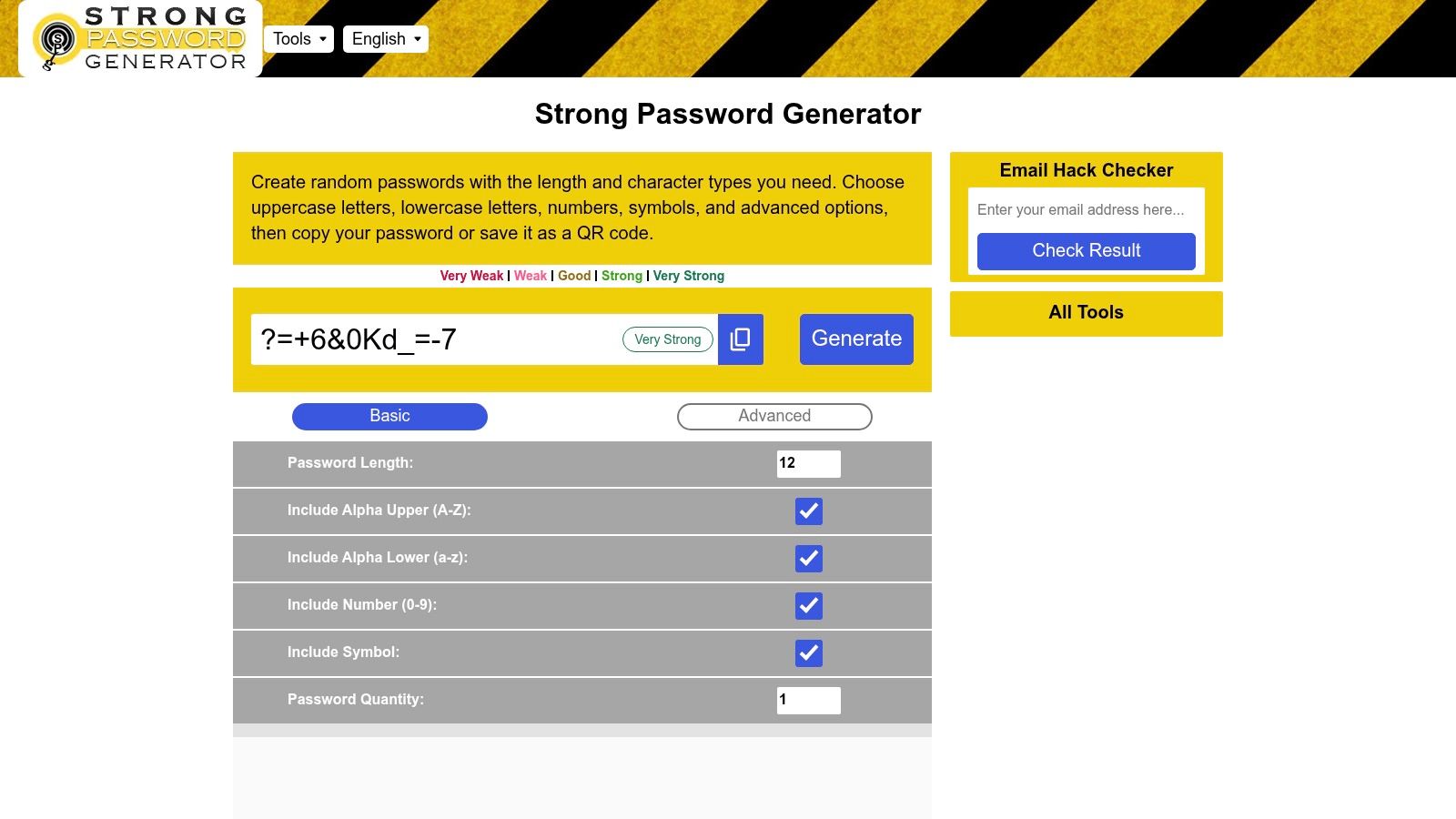
Best for restrictive password policies and cross-device transfer. The strong password generator offers more control than a basic length slider. You can adjust character types, choose symbol rules, generate multiple passwords, and switch between basic and advanced settings.
The advanced options are its main distinction. Starting-character preferences, character-type quantities, similar-character exclusions, and duplicate prevention can help when a legacy application rejects otherwise sensible passwords.
Use the Extra Controls Selectively
Say a client portal requires a letter at the beginning and accepts only certain symbols. Configure those restrictions before generating rather than repeatedly editing a random password by hand. Leave unnecessary restrictions disabled, because excluding characters or forbidding repetition narrows the possible outputs.
- Policy matching: Set character requirements to match the destination service, not an arbitrary idea of complexity.
- Manual entry: Exclude lookalike characters when someone needs to type the password.
- Device transfer: QR output lets you scan a generated credential rather than retype it on a phone.
The service states that passwords are generated on the page and aren't saved by the service. That's useful privacy information, but it doesn't establish how every part of the page handles data or independently verify its random-number implementation.
QR transfer also needs care. Don't screenshot the code or scan it using an unfamiliar app, since the code represents the credential itself.
Companion strength-checking, email-exposure, PIN, and hashing utilities make this a useful security toolbox. They don't replace a vault, and a favorable strength result doesn't make password reuse safe. Choose this tool for configuration flexibility, then save the result in your existing password manager.
2. Password Generator
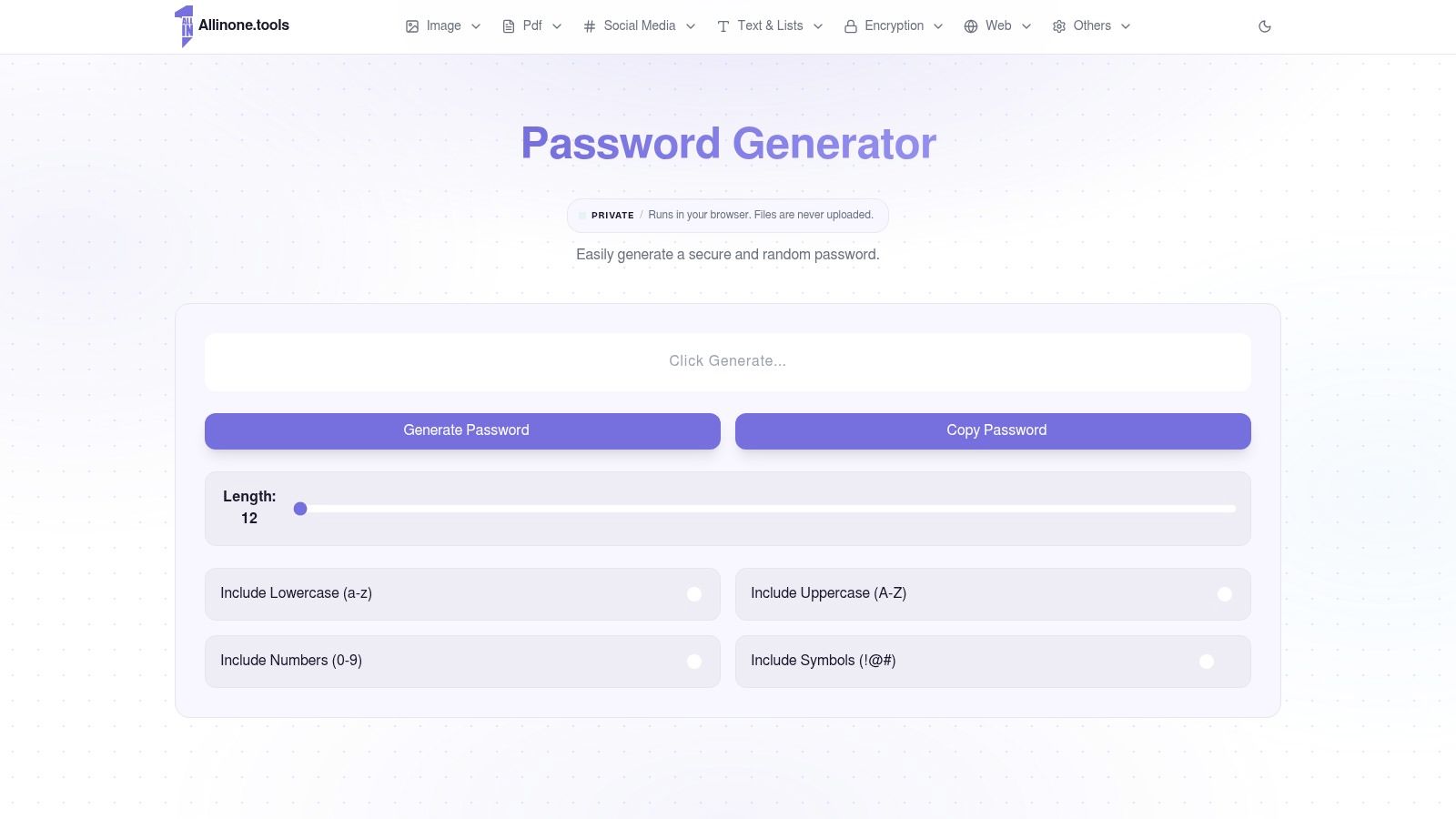
Allinone.tools is the straightforward one-off choice. Its Password Generator lets you choose password length, enable lowercase letters, uppercase letters, numbers, and symbols, then generate and copy the result. There's no account to create or software to install.
That restrained interface suits someone setting up a new supplier login or replacing a weak credential while working in a browser. It also fits users who already visit Allinone.tools for document, image, or developer utilities and don't need another full application.
The trade-off is that generation and management remain separate. The page details don't describe bulk generation, saved-password history, or a password-strength meter, so don't choose it expecting those features.
What to Check Before Using the Result
For a browser generator, the implementation matters more than the appearance of its output. A security-conscious implementation should use crypto.getRandomValues rather than Math.random(), and generated secrets shouldn't enter analytics, URLs, or logs. The available product description doesn't establish those implementation details, so simplicity alone shouldn't be treated as proof of local-only processing.
- Choose settings first: Match the website's accepted length and character rules.
- Save promptly: Put the generated password into your trusted vault with the account name and username.
- Handle copying carefully: Clipboard managers and device synchronization may retain copied text.
This is a good fit when you already have somewhere secure to store passwords and need a focused generator. It's less suitable when your underlying problem is forgotten logins, scattered credentials, or repeatedly losing newly generated passwords between tabs.
3. Bitwarden Password Generator
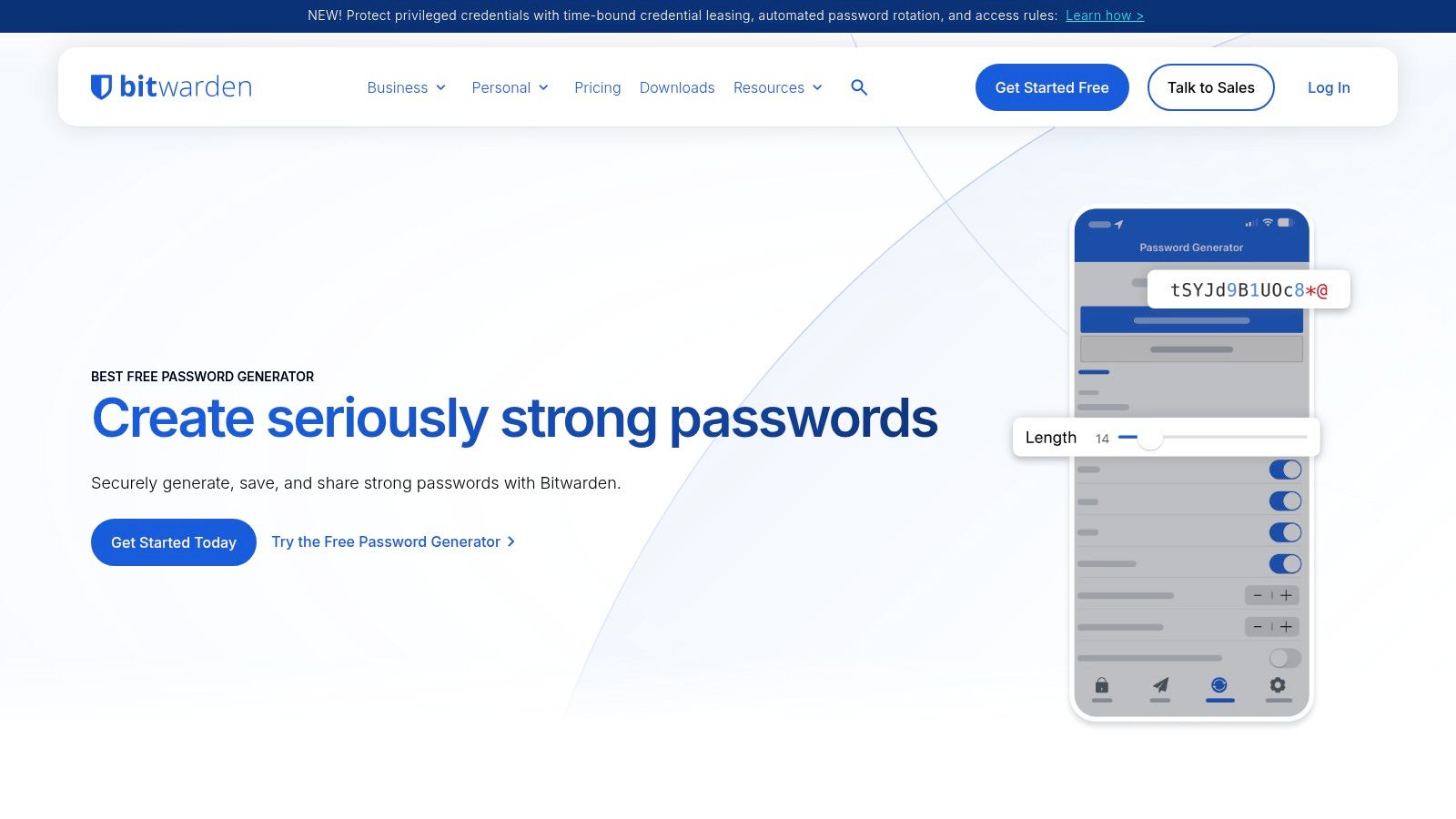
Bitwarden offers a useful bridge between standalone generation and a vault. The Bitwarden Password Generator works without an account and supports both random-character passwords and random-word passphrases.
Its passphrase controls include word count, separators, capitalization, and number inclusion. That makes it a practical choice when the password must occasionally be typed on a device where autofill isn't available.
The distinction is between generating words randomly and choosing a familiar sentence yourself. A personal quotation, even with punctuation added, isn't equivalent to an independently generated passphrase.
Practical rule: Use random strings for credentials your manager fills. Consider random-word passphrases for credentials you must type or remember.
The optional manager addresses the bigger workflow problem. Among respondents using a password manager at home, 45% said they reused passwords less frequently, according to Bitwarden's World Password Day survey. That's self-reported behavior, not a guarantee that installing a manager fixes reuse.
The standalone webpage doesn't automatically save its output to a vault. If you already use Bitwarden, generating inside the manager usually avoids an unnecessary copy-and-save step. If you don't, the webpage remains useful without committing to the broader service.
4. Proton Pass Password Generator
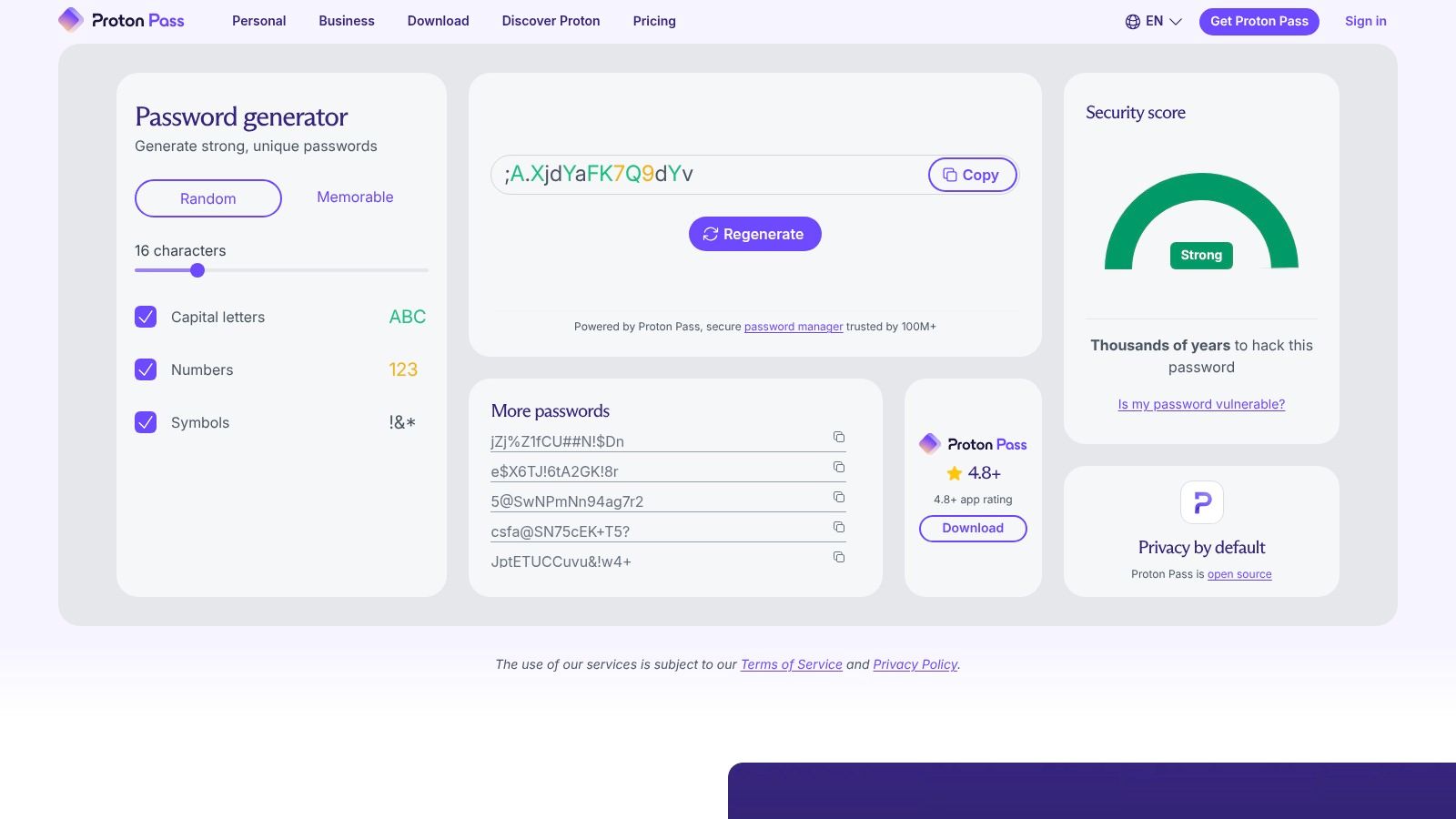
A generator doesn't help much if you immediately lose its output. Proton Pass Password Generator is worth considering when you want to connect password creation with ongoing storage rather than maintain separate tools.
It supports random passwords and memorable passphrases, with adjustable length and character settings. Proton Pass also offers a free password-management plan with saved logins and access across devices.
Choose It for the Save-and-Use Workflow
The practical benefit is continuity. Generate a password while creating a login, keep it with the correct website address, and retrieve it through the manager instead of searching notes or clipboard history.
- Random passwords: Appropriate when autofill handles everyday entry.
- Passphrases: Useful when typing the credential manually is unavoidable.
- Related utilities: Username generation and strength testing can help with account setup, but neither replaces secure storage.
Some management and privacy features require a paid plan. Check the current feature boundaries before choosing Proton Pass for a specific sharing or organizational requirement.
Its privacy-oriented positioning also shouldn't substitute for checking your own device security and account recovery setup. A vault is only useful if you can reliably open and recover it.
Choose Proton Pass when you want generation and storage together. For an isolated password that will go into an existing manager, the broader service may be unnecessary.
5. Avast Random Password Generator
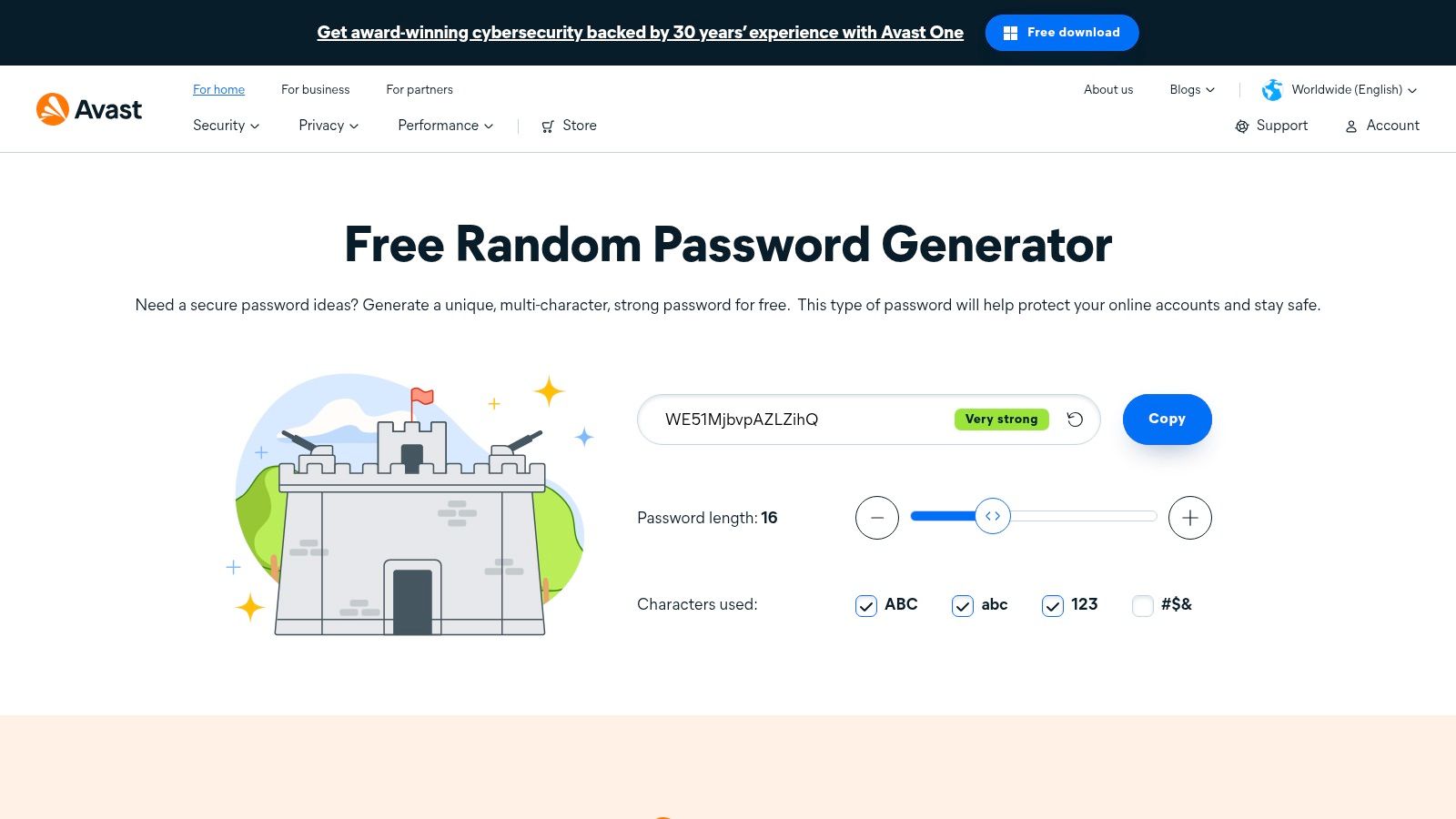
Avast fits the quick-generation category, even though its name is associated with broader security software. The Avast Random Password Generator runs in a browser without requiring an account or password-manager installation.
You can change length, select uppercase and lowercase letters, include numbers and symbols, and copy the result. Its strength indicator gives immediate feedback as you adjust those settings.
Avast states that generated passwords are created on your device and aren't transmitted or stored by the service. Treat that as a provider claim about the tool's behavior, not an independent assessment of the entire webpage.
A local generator can still leave a password exposed through a compromised browser, an unsafe extension, or clipboard capture.
The important limitation is storage. Avast's generator doesn't organize the account you created, remember its username, or provide the same save-and-autofill workflow as a dedicated vault.
- Good fit: You need a configurable password and already have a trusted storage method.
- Poor fit: You expect the generator page to preserve and retrieve credentials later.
Don't keep regenerating to obtain a more complicated-looking string. Choose appropriate settings, generate once, and save securely. A readable pattern that happens to appear in random output doesn't by itself establish that the generator is defective.
6. Keeper Password Generator
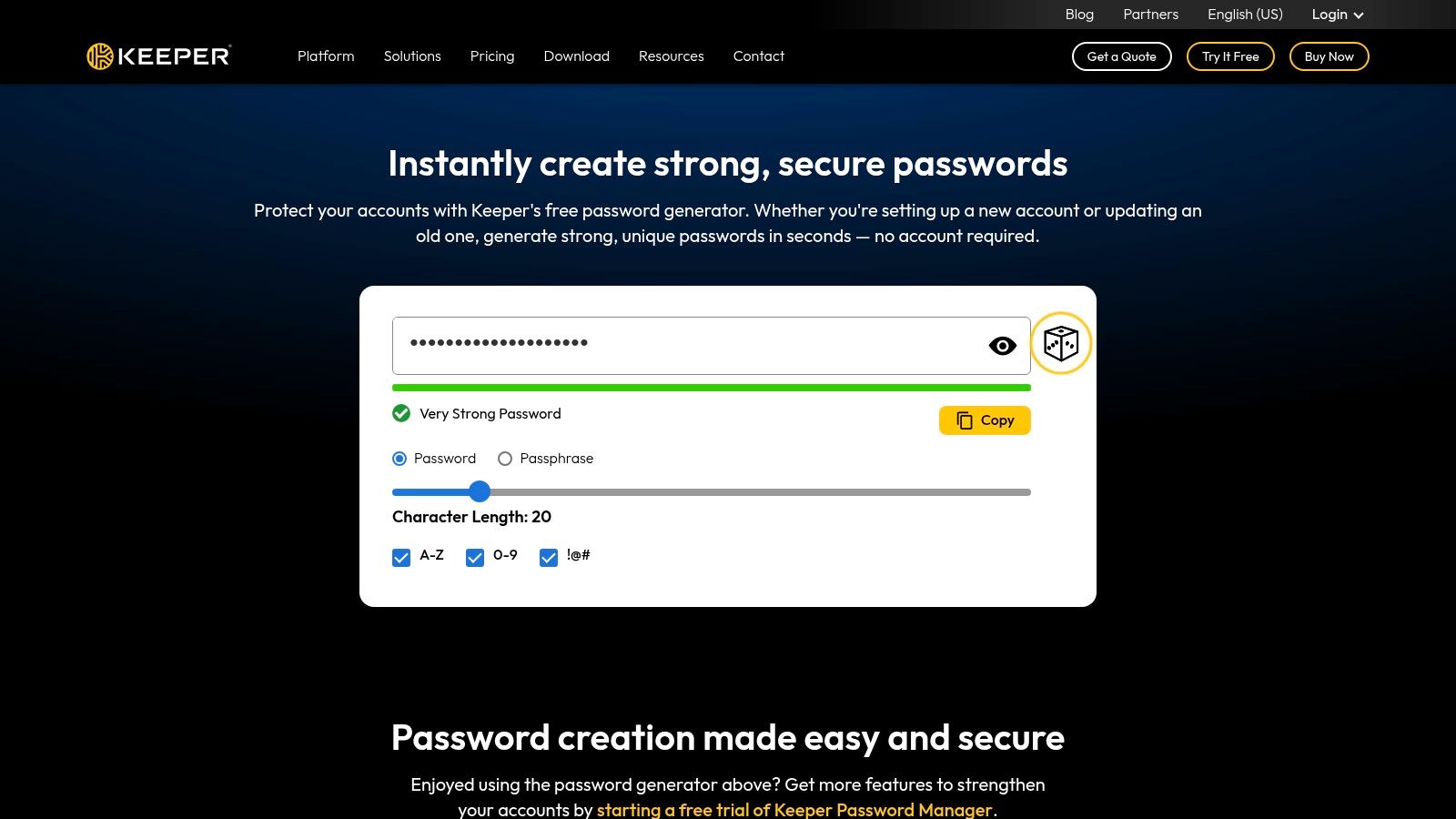
A team replacing shared or weak credentials needs more than a copy button. Keeper Password Generator supports standalone generation, while Keeper's broader service adds vault storage, autofill, and business password-policy controls.
The generator handles random-character passwords and multiword passphrases. Length, character selection, word count, and separators provide flexibility for both website requirements and manual-entry situations.
History Is Helpful, but It Isn't Your Filing System
Generator history can help you revisit a recent credential after an interrupted signup. It shouldn't become your permanent record of which password belongs to which account.
Store the accepted credential in a named vault entry, with the correct username and website. Otherwise, several recent generated strings can leave you guessing which one worked.
- For individuals: The account-free generator is useful without adopting Keeper.
- For teams: Evaluate vault sharing and policy controls alongside generation.
- For manual entry: Choose a generated passphrase only when the destination accepts its format.
Keeper's organizational features are unnecessary for a one-off login. They become relevant when administrators need consistent settings and a controlled way to distribute access.
The decision is therefore less about whether Keeper can produce a random password and more about whether its wider management workflow matches how your team assigns, stores, and retrieves credentials.
7. Dashlane Password Generator
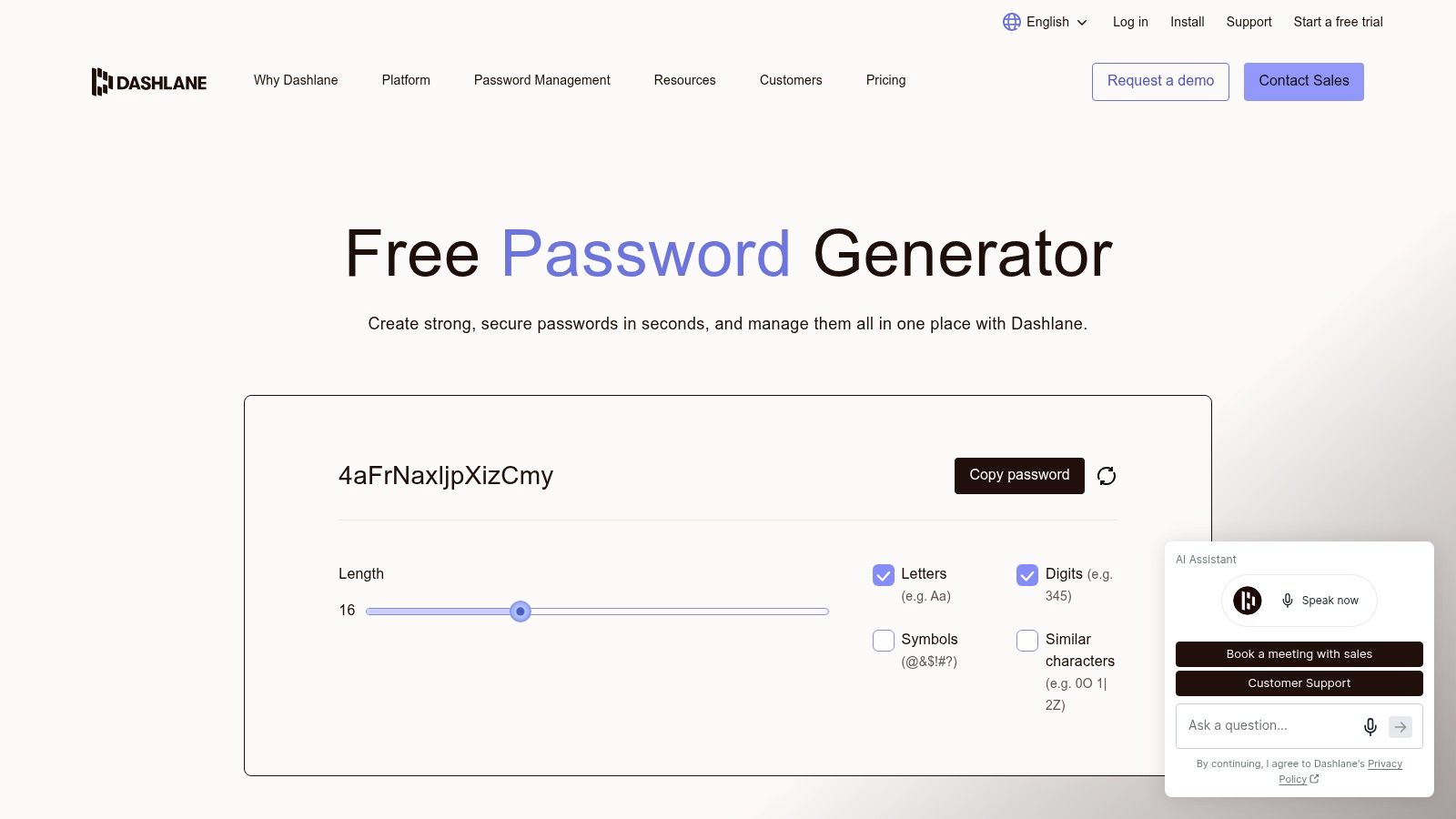
Dashlane is useful when character readability affects whether a password is usable. Its Password Generator includes controls for letters, numbers, symbols, and similar-looking characters.
Excluding lookalikes can help when entering a credential on a television, remote console, or unfamiliar keyboard. Leave that restriction off when autofill handles entry and there's no practical reason to narrow the character set.
Dashlane offers generation through the web, apps, and browser extension, but the available formats aren't identical everywhere. Passphrase generation is available through the web version and extension rather than across every app.
Match the Tool to the Destination
The free online generator doesn't require purchasing a plan. Saving, syncing, and autofilling credentials belong to the password-manager workflow, so distinguish the standalone webpage from the service you'd use daily.
For document passwords, the same distinction matters: creating a password and applying protection are different tasks. Follow the PDF password-protection guide when you need to protect a file rather than create a website login.
Dashlane states that its personal-plan generator can generate locally on the device. That statement doesn't remove the need to save the output securely or verify that you've attached it to the correct account.
Choose Dashlane for its character controls or an existing Dashlane workflow, not because a strength indicator approves the result.
8. NordPass Password Generator
NordPass works well as a standalone utility with an optional route into storage. The NordPass Password Generator lets you adjust length and character composition, including uppercase letters, lowercase letters, digits, and symbols.
Its ambiguous-character exclusion is useful when passwords must cross keyboard layouts or be entered manually. For passwords that stay inside a manager, that option usually offers less benefit.
Consider a freelancer creating access to a client's project platform. The online tool can supply the credential, but the account still needs an owner, a recovery method, and a secure storage location.
- Generate to the actual policy: Follow the client platform's accepted characters and length.
- Use the right vault: Store work credentials in the location approved for that client or organization.
- Respect managed settings: Workplace policies may limit which generator options you can change.
NordPass apps provide a route to saving generated passwords in a vault. The online generator alone doesn't organize credentials or establish who should retain access after a project ends.
That makes NordPass a sensible choice for existing users and a straightforward option for standalone generation. It's not a substitute for deciding where client credentials belong, especially when personal and business accounts share the same browser.
9. LastPass Password Generator
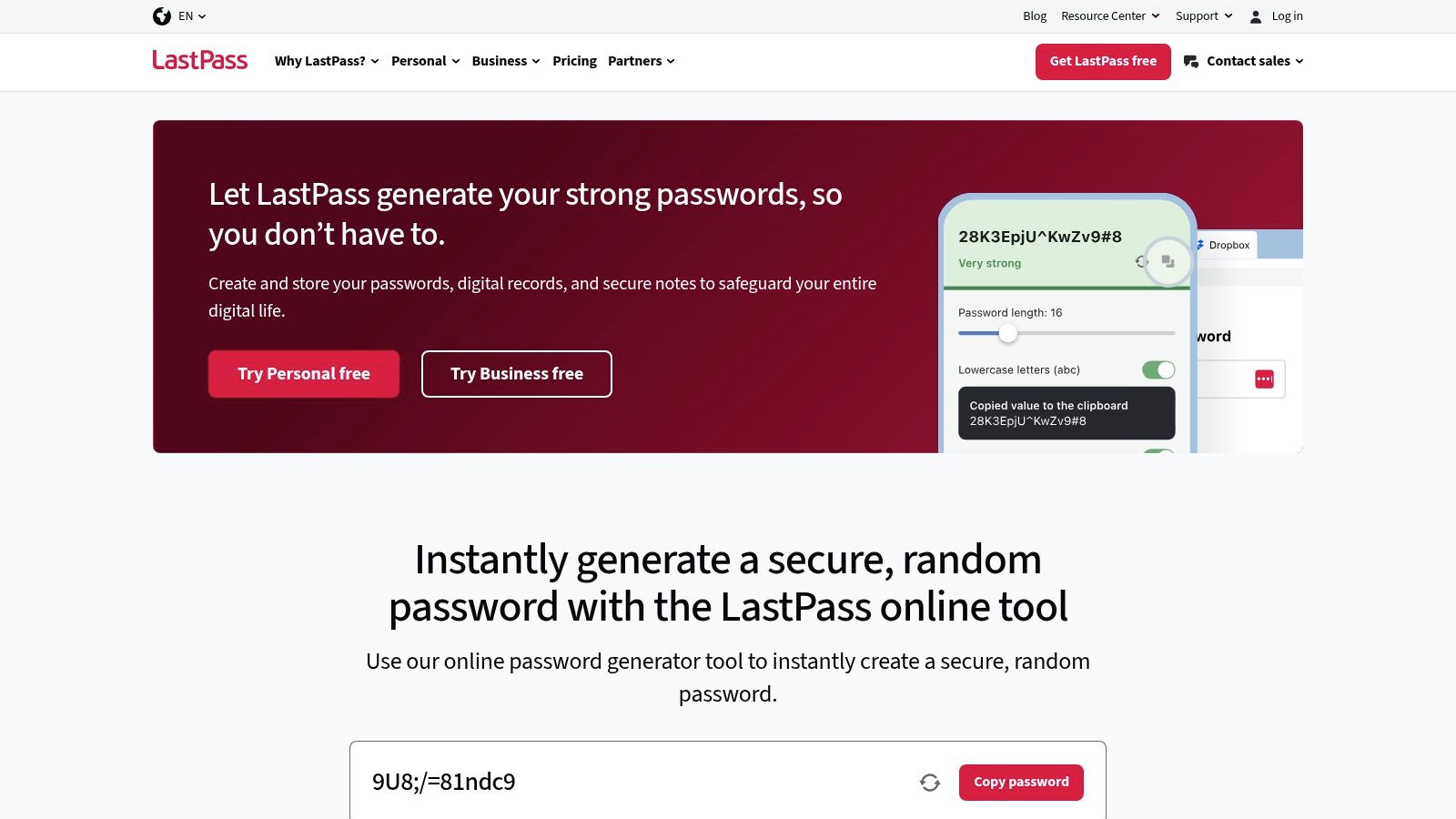
The LastPass Password Generator offers readability and pronunciation options alongside length and character controls. Those settings address a genuine problem: some generated passwords are awkward to communicate or enter manually.
Easier to pronounce doesn't automatically mean better protected. Readability settings constrain the output, so choose them for a concrete usability need rather than assuming they improve security.
The standalone generator and the LastPass manager serve different purposes. You can copy a password from the webpage, while vault storage and autofill require the broader management workflow.
Don't let a convenient generator decide your vault provider. Storing your credentials is a separate trust decision.
Before adopting the manager, review LastPass's current security information, recovery arrangements, device support, and plan restrictions. A generator interface can't answer those questions for you.
- Choose the webpage: You need a configurable password to save elsewhere.
- Evaluate the manager separately: You want ongoing storage, syncing, and autofill.
For most accounts handled by autofill, a conventional random string is the simpler choice. Use readability options when manual entry is part of the workflow, and don't turn the result into a reusable base password for other services.
10. RoboForm Password Generator
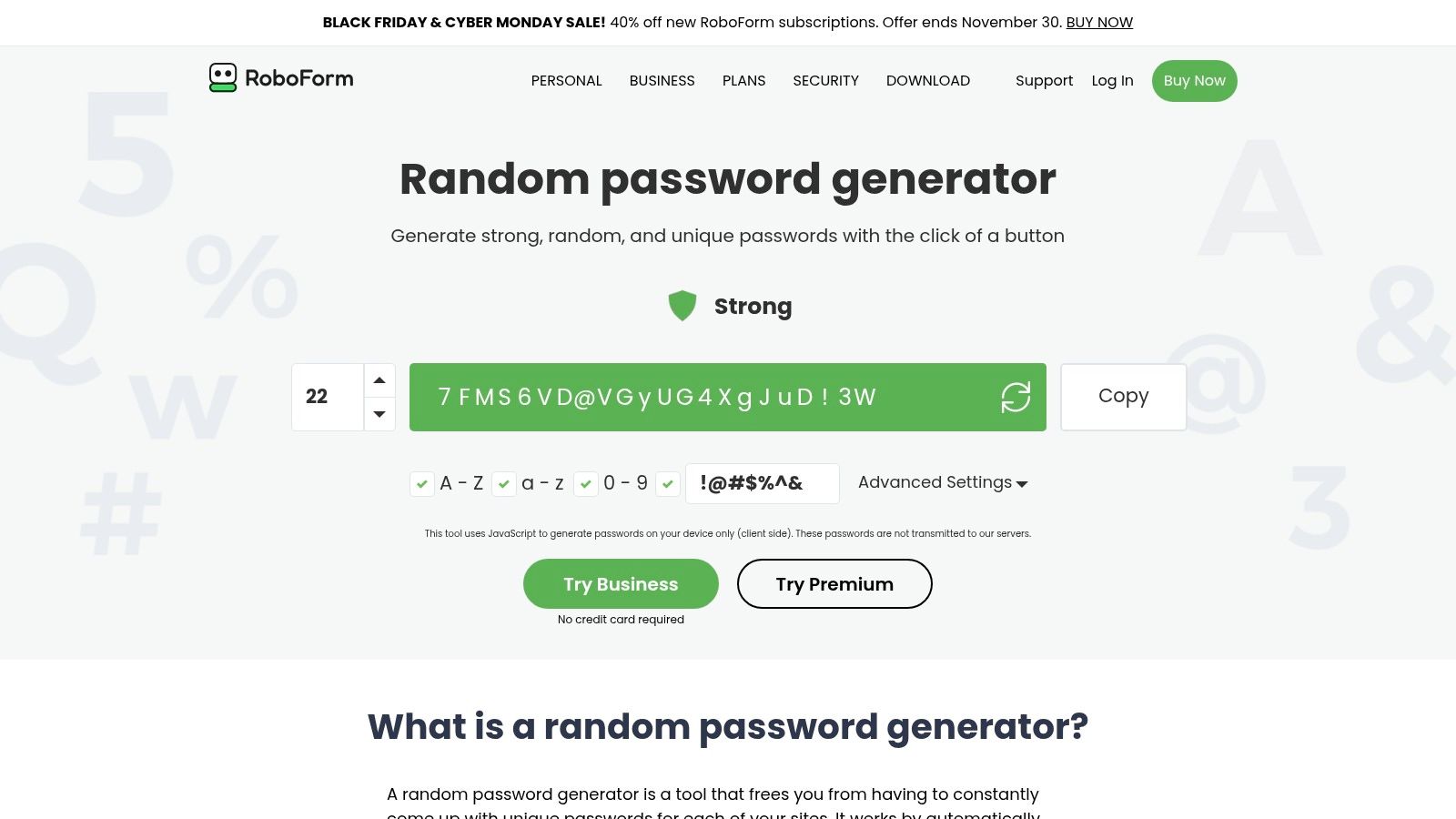
RoboForm offers a clear standalone-versus-integrated choice. Its Password Generator can be used without an account, or alongside RoboForm's extensions and apps for filling and saving credentials.
RoboForm says the web generator uses JavaScript on your device and doesn't send generated passwords to its servers. That's a useful description of the intended processing model, although it remains a provider statement rather than independent verification.
The Main Benefit Is Fewer Transfer Steps
If you already use RoboForm, generating within its management workflow can reduce copying between a website, a generator tab, and a vault entry. That matters because each manual transfer creates another opportunity to save the wrong string or associate it with the wrong login.
Standalone use leaves that responsibility with you. Closing the generator page shouldn't be treated as a safe way to preserve its output.
- For occasional use: Generate in the browser and save the result immediately in your chosen manager.
- For routine credential work: Use integrated generation, filling, and saving where available.
RoboForm is a practical option for users who want a simple webpage now and might use its manager later. Don't install a new vault solely to avoid a single copy operation, though. Existing storage habits matter more than adding another password-management account.
11. 1Password Password Generator
1Password is the vault-first option. Rather than treating generation as a separate webpage task, 1Password primarily integrates it into the manager and browser extension while you create or update logins.
That workflow helps keep the generated password beside its username and website address. Autofill and password-security alerts then support ongoing use rather than leaving you with an isolated string.
It's a stronger fit for someone who wants to manage credentials consistently than for someone seeking a free, no-account generator. Personal plans are subscription-based, so evaluate the broader service rather than comparing the generator button alone.
Keep Generation, Storage, and Hashing Separate
A password generator creates a secret. A password manager stores and retrieves that secret, while hashing transforms input for a different purpose.
If you also work with development or verification tools, the guide to choosing MD5, SHA-1, or SHA-256 explains those distinctions. A hash utility isn't a replacement for a password manager or a purpose-built password-storage design.
Choose 1Password when you want generation to happen inside an established credential workflow. Before committing, test the extension on the sites you use, confirm device compatibility, and understand recovery. Convenience only helps if you can reliably access the vault when you need it.
All 10 password generators at a glance
| Tool | Standalone Use | Passphrase Support | Vault Integration | Best For |
|---|---|---|---|---|
| Strong Password Generator | Yes, browser-based | Not specified | No vault integration described | Advanced password customization and QR-code transfer |
| Password Generator | Yes, browser-based | Not specified | No vault integration described | Quick password generation with basic character controls |
| Bitwarden Password Generator | Yes, no account required | Yes | Saves and autofills with Bitwarden | Passwords or memorable passphrases, with optional vault storage |
| Proton Pass Password Generator | Yes | Yes | Integrated with Proton Pass | Generating and storing passwords or passphrases in one service |
| Avast Random Password Generator | Yes, browser-based | Not specified | No vault integration described | Quick password generation with a strength indicator |
| Keeper Password Generator | Yes, no account required | Yes | Saves to Keeper vault | Passwords or passphrases, including for teams with policy needs |
| Dashlane Password Generator | Yes, online | Yes, on web and browser extension | Saves to Dashlane vault | Detailed character controls and easier-to-type passwords |
| NordPass Password Generator | Yes, online | Not specified | Saves to NordPass vault | Custom passwords with an optional path to vault storage |
| LastPass Password Generator | Yes, online | Not specified | Saves to LastPass vault | Passwords with readability options and optional manager integration |
| RoboForm Password Generator | Yes, no account required | Not specified | Saves to RoboForm vault | Standalone generation or an integrated fill-and-save workflow |
| 1Password Password Generator | Limited; built into the manager and extension | Not specified | Saves directly to 1Password vault | Generating and saving credentials as part of a password-management workflow |
Choosing the Right Generator for Your Workflow
The best password generator is the one that helps you create unique credentials and keep them retrievable. For occasional generation, Allinone.tools offers a focused interface, Strong Password Generator handles detailed composition requirements, and RoboForm provides an account-free option with a stated client-side processing model.
For repeated account creation, start with the manager you already trust. Bitwarden, Proton Pass, Keeper, Dashlane, NordPass, LastPass, RoboForm, and 1Password connect generation with storage in different ways. Moving between generators rarely improves your workflow as much as saving each credential correctly.
Prioritize Length, Randomness, and Uniqueness
The NIST Digital Identity Guidelines require passwords used as a single-factor authenticator to be at least 15 characters, while passwords used with multifactor authentication may be as short as 8 characters. Those are authentication requirements, not a reason to shorten an otherwise usable generated password.
Use a long random password within the destination's accepted limits. Follow required composition rules, but don't mistake a mandatory symbol for meaningful protection if the underlying password is predictable.
- For autofilled logins: Prefer independent random-character passwords saved directly in a vault.
- For manual entry: Consider independently generated multiword passphrases, checking whether spaces and separators are accepted.
- For restrictive services: Configure the generator to the policy instead of repeatedly editing outputs yourself.
- For important accounts: Enable multifactor authentication and protect recovery methods alongside the password.
A generator also isn't a complete authentication strategy. Where a service offers passkeys, consider that option rather than assuming every future login must remain password-based.
Finish the Account Setup, Not Just the Generation
If a password remains as a fallback after passkey enrollment, keep it unique and stored securely. Check recovery email access, backup methods, and who can approve an account reset.
Likewise, don't assume copying means saving. Confirm that the website accepted the credential, that your vault contains the accepted version, and that the entry points to the correct domain.
For client and team accounts, decide who owns the credential before creating it. Store it in the approved shared location rather than a personal note, email draft, or chat message.
Choose one account that still uses a reused password today. Generate a fresh credential with the tool that fits your workflow, save it immediately in your trusted password manager, confirm that it works, and enable multifactor authentication or a passkey where supported.