
How to Password Protect a PDF for Free (2026 Guide)
February 25, 2026 · 9 min read
Over 400 billion PDF files were opened last year, and 22% of malicious email attachments now hide inside PDFs (Check Point Research, 2025). If you're sharing contracts, tax documents, or anything sensitive, a password is the bare minimum.
The good news: you don't need Adobe Acrobat Pro or any paid software. In this guide, you'll learn how to password protect a PDF for free on every platform, which tools actually work, and how secure PDF passwords really are.
How to Password Protect a PDF for Free Online
The fastest way to password protect a PDF is with a browser-based tool. No installs, no signups, no waiting.
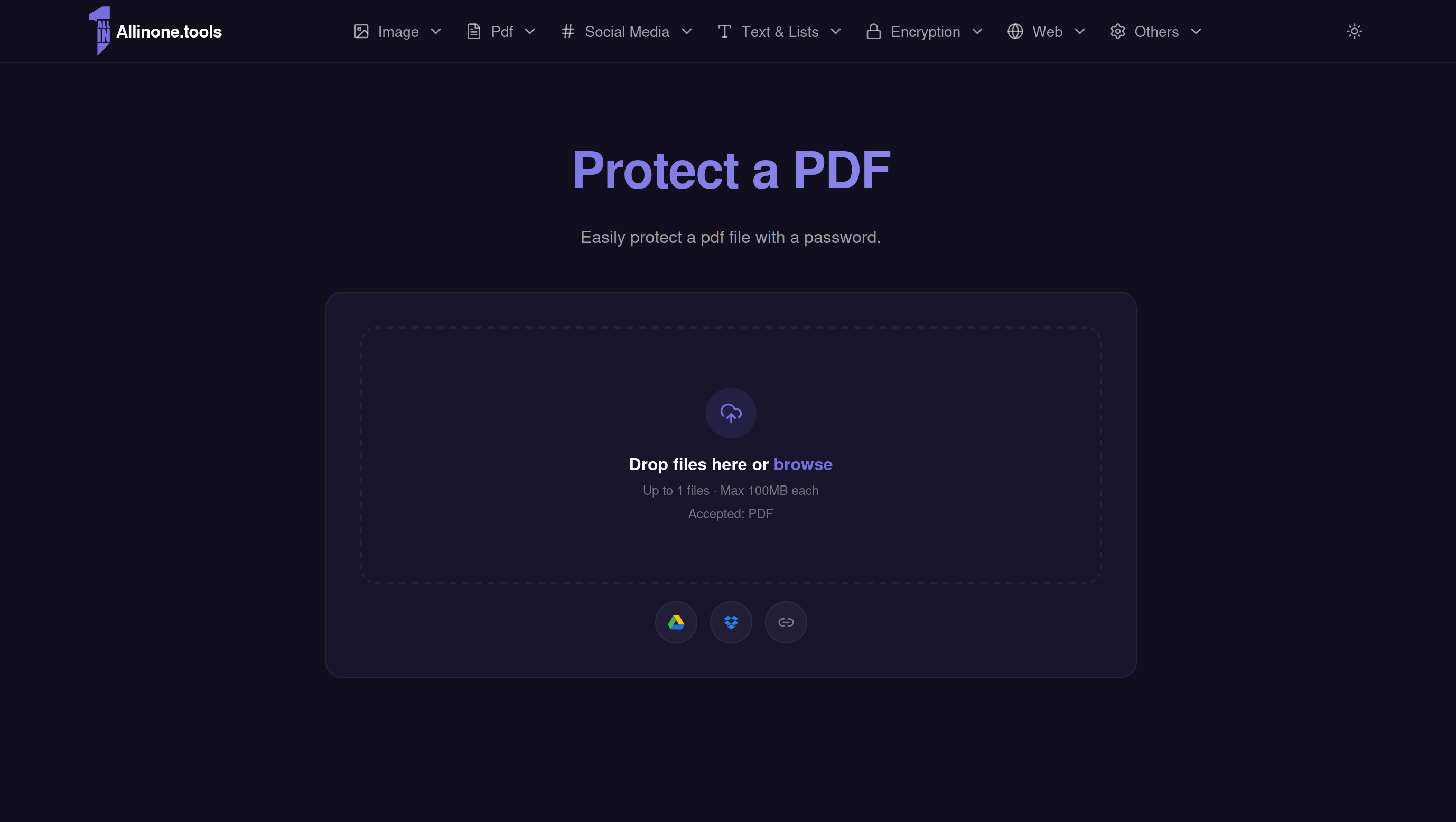
allinone.tools Protect PDF lets you lock down any PDF in under 30 seconds. It works on Windows, Mac, Linux, iPhone, Android, or anything else with a browser.
Step 1: Upload Your PDF
Go to allinone.tools/pdf/protect-pdf. Drag and drop your file into the upload area, or click to browse. You can also import directly from Google Drive or Dropbox. The file size limit is 100MB.
Step 2: Set Your Password
Type a strong password. Aim for at least 12 characters with a mix of uppercase, lowercase, numbers, and symbols. Avoid anything guessable like a birthdate or "password123."
Step 3: Download Your Protected PDF
Click the protect button and download your encrypted file. That's it. No watermark, no account, no credit card.
Why this tool? Most free online PDF tools either slap a watermark on your file, limit you to one use per day, or force you to create an account. allinone.tools does none of that. It's also part of a 100+ free tool ecosystem, so you can merge, compress, or convert the same PDF without switching sites.
How to Password Protect a PDF on Mac
Mac users have a built-in option through Preview, but the fastest method is the same online tool above.
Using allinone.tools (Recommended)
Open Safari or any browser, go to allinone.tools/pdf/protect-pdf, and follow the three steps above. Works identically on macOS, and you skip the quirks of Preview's export flow.
Using Preview (Built-In)
If you prefer staying offline:
- Open your PDF in Preview.
- Go to File > Export.
- Check the Encrypt checkbox at the bottom of the dialog.
- Enter and verify your password.
- Click Save.
One thing to know: Preview uses 128-bit AES encryption. It gets the job done for everyday documents, but it won't let you set separate permissions (like allowing viewing but blocking printing).
How to Password Protect a PDF on Windows
Windows doesn't have a built-in PDF encryption tool, but you have solid free options.
Using allinone.tools (Recommended)
Same process as above. Open allinone.tools/pdf/protect-pdf in Chrome, Edge, or Firefox. Upload, set password, download. No software to install.
Using LibreOffice (Free, Offline)
If you need an offline option:
- Download LibreOffice (free, open source).
- Open your PDF in LibreOffice Draw.
- Go to File > Export as PDF.
- Click the Security tab.
- Click Set Passwords and enter an open password.
- Click Export.
LibreOffice supports both 128-bit and 256-bit AES encryption and lets you set granular permissions (block printing, block copying, block editing).
Using Microsoft Word (Workaround)
You can also open a PDF in Word, which converts it to a .docx. Then go to File > Save As > PDF and set a password through the Options > Encrypt dialog. Fair warning: formatting may shift during the conversion, so check the output carefully.
How to Password Protect a PDF Without Adobe
You don't need Adobe Acrobat. Here's why: Adobe's free online tool limits what you can do, and Acrobat Pro costs $22.99/month. For straightforward password protection, free tools handle it just as well.
Your best free options:
- allinone.tools is the simplest. No account, no limits on daily use, no watermarks.
- Smallpdf offers a protect feature, but free users get limited daily tasks.
- iLovePDF works but shows ads and has a daily cap on the free tier.
- PDF24 is free and unlimited but requires a download for full features.
If all you need is a password on a PDF, there's no reason to pay for Acrobat.
How to Password Protect a PDF on iPhone and Android
Mobile guides for PDF protection are surprisingly rare online. Here's what actually works.
iPhone and iPad
Your fastest option is allinone.tools/pdf/protect-pdf in Safari or Chrome. The upload area works with your Files app, iCloud Drive, Google Drive, and Dropbox. The full flow is identical to desktop.
There's no native iOS feature to password protect a PDF. The Files app lets you share and annotate PDFs, but not encrypt them. Some third-party apps like PDF Expert offer it, but they require a paid subscription.
Android
Same story. Open allinone.tools/pdf/protect-pdf in Chrome. Tap the upload area, select your PDF from Files or Google Drive, set your password, and download the protected version.
Google Drive doesn't offer PDF password protection either. You'd need a third-party app, and most of the free ones on the Play Store are loaded with ads. The browser-based approach is cleaner and faster.
Free PDF Password Protection Tools Compared
Here's how the free options stack up:
| Tool | Price | Signup Required | Max File Size | Daily Limit | Watermark | Works on Mobile |
|---|---|---|---|---|---|---|
| allinone.tools | Free | No | 100MB | Unlimited | No | Yes |
| Smallpdf | Free (limited) | Yes (for full use) | 5GB | 2 tasks/day | No | Yes |
| iLovePDF | Free (limited) | No | 100MB | Limited | No | Yes |
| PDF24 | Free | No | Unlimited | Unlimited | No | Yes (web version) |
| Adobe Acrobat Online | Free (limited) | Yes | 100MB | Limited | No | Yes |
| Adobe Acrobat Pro | $22.99/mo | Yes | Unlimited | Unlimited | No | Yes |
For most people, allinone.tools hits the sweet spot: genuinely free, no strings attached, and works on every device.
User Password vs. Owner Password
PDFs actually support two types of passwords, and mixing them up is one of the most common mistakes.
User password (open password): This is what most people mean when they say "password protect a PDF." Anyone who wants to open the file needs this password. Without it, the PDF is unreadable.
Owner password (permissions password): This restricts what someone can do after opening the file, like printing, copying text, or editing. The catch? The reader can still open and view the PDF without entering a password.
Here's the important part: owner passwords are easy to bypass. Free tools can strip permissions passwords in seconds. If you need real protection, always set a user password. That's what encrypts the actual file content.
When you use allinone.tools Protect PDF, you're setting a user password, which is the one that actually matters.
How Secure Is PDF Password Protection, Really?
Honest answer: it depends on how you do it.
What works well:
- A strong user password (12+ characters, mixed types) with AES-256 encryption is genuinely hard to crack. Brute-forcing it would take years with current hardware.
- For everyday documents like invoices, contracts, and tax returns, a password-protected PDF is more than enough.
What doesn't work well:
- Weak passwords. "Company2026" can be cracked in minutes with modern tools.
- Permissions-only passwords. As mentioned above, these are trivially removable.
- Outdated encryption. Older PDFs using 40-bit RC4 encryption offer almost no protection.
What the research says: A 2019 study by Ruhr University Bochum found that 85% of 27 PDF viewers tested were vulnerable to content exfiltration attacks, even with encryption enabled (pdf-insecurity.org). This doesn't mean passwords are useless, but it does mean they're not bulletproof.
Bottom line: PDF password protection is solid for everyday privacy. It stops casual snooping and keeps honest people honest. It's not a fortress for state secrets. For high-stakes documents, combine a password-protected PDF with encrypted email or a secure file-sharing service.
What to Do If You Forget Your PDF Password
This is the part nobody talks about. Unlike your email or bank account, PDFs don't have a "forgot password" button. If you lose the password, your options are limited.
Prevention (do this now):
- Store PDF passwords in a password manager like Bitwarden, 1Password, or KeePass.
- Never rely on memory alone for important document passwords.
- Keep an unprotected backup of the original file in a secure location.
If you're already locked out:
- If you set the password yourself, check your password manager, browser saved passwords, or notes.
- If someone else sent you the file, ask them for the password or an unprotected copy.
- PDF password recovery tools exist (like John the Ripper or Hashcat), but they only work on weak passwords. A strong password is essentially unrecoverable.
This is exactly why using a strong, unique password and saving it in a password manager matters. The same strength that keeps attackers out will also keep you out if you forget it.
When PDF Passwords Aren't Enough
For most people, a password-protected PDF is the right call. But there are scenarios where you need more:
- Legal or compliance documents: Consider digital signatures and certificate-based encryption instead.
- Highly confidential business files: Use enterprise DRM solutions or encrypted file-sharing platforms like Tresorit or Proton Drive.
- Documents shared with large groups: The more people who know the password, the less secure it is. Consider access-controlled sharing links instead.
For everything else, a solid password on your PDF does the job.
Your PDF has sensitive information. It takes 30 seconds to protect it. Go to allinone.tools Protect PDF, set a strong password, and send it with confidence.
Sources:
- Check Point Research - The Weaponization of PDFs - 22% of malicious email attachments are PDFs (2025)
- Smallpdf - PDF Statistics - 2.5 trillion PDFs exist worldwide (2025)
- Ruhr University Bochum - PDF Encryption Research - 85% of PDF viewers vulnerable to exfiltration (2019)
- PDF Insecurity Research - Comprehensive PDF security vulnerability database
- IBM/Ponemon Institute - Global average data breach cost: $4.88 million (2024)