
How to Remove Gemini Watermark in Seconds (Free, No Sign-Up)
March 3, 2026 · 8 min read
Google Gemini generates stunning AI images, but every single one comes with that small sparkle watermark stamped in the corner. If you need clean images for a presentation, a mockup, or a personal project, that watermark gets in the way. Here's how to remove Gemini watermark from any image in under 10 seconds, completely free.
What Is the Gemini Watermark (and Why Does It Exist)?
Every image generated by Google Gemini carries two types of identification. Understanding both helps you know exactly what you're dealing with before you try to remove Google Gemini watermark artifacts.
The visible watermark is the one you can see. It's a small sparkle logo (sometimes called the "Nano Banana" mark) that sits in the bottom-right corner of every Gemini image. On images 1024 pixels or smaller, it measures 48x48 pixels. On larger images, it scales up to 96x96 pixels. It's always positioned with a 32-pixel offset from the bottom-right edge.
Google added this watermark to clearly label AI-generated content. It started appearing on all free-tier Gemini image outputs as part of Google's responsible AI initiative.
The invisible watermark is called SynthID. Developed by Google DeepMind, SynthID embeds imperceptible signals directly into the pixel data of AI-generated content. Google has used SynthID to watermark over 20 billion pieces of AI-generated content since 2023. It's designed to let detection tools verify whether an image was created by AI, even after edits, screenshots, or format changes.
The visible sparkle mark is what most people want gone. That's the one we're removing today.
Good to know: Removing the visible watermark does not remove SynthID. Your image will still be identifiable as AI-generated by detection tools. More on this below.
Why You Might Want to Remove Gemini Watermark
There are plenty of legitimate reasons to want a clean image without the sparkle logo:
- Presentations and slide decks. A watermark in the corner of a slide graphic looks unprofessional and distracts your audience.
- Mockups and prototypes. If you're using AI images as placeholder visuals for a website, app, or product concept, the watermark breaks the illusion.
- Social media content. A branded watermark from Google on your Instagram or LinkedIn post looks like you grabbed someone else's image.
- Personal creative projects. You generated the image. You should be able to use it cleanly in a collage, wallpaper, or print project.
- Blog and article graphics. AI-generated images work great as featured images, but only without a visible watermark competing for attention.
The watermark serves Google's transparency goals, but it doesn't always serve yours. A gemini watermark cleaner lets you use your AI-generated images the way you intended.
How to Remove Gemini Watermark with allinone.tools
This is the fastest method. The Gemini Watermark Remover on allinone.tools uses a reverse alpha blending algorithm to mathematically reconstruct the original pixels behind the watermark. No AI guessing, no smudging, no quality loss.
Here's what makes it different from other gemini watermark remover tools:
- 100% free with no usage limits or daily caps
- No sign-up or account required
- Browser-based processing (your image never leaves your device)
- Works with JPEG, PNG, and WebP formats
- Supports batch processing for multiple images at once
Step 1: Open the Tool
Go to allinone.tools/images/gemini-watermark-remover in any browser on your phone, tablet, or computer. No downloads or installations needed.
Step 2: Upload Your Gemini Image
Drag and drop your image into the upload area, or click to select it from your device. You can upload a single image or drop in a batch if you have several Gemini images to clean at once.
The tool automatically detects the watermark position and size. You don't need to select or highlight anything manually.
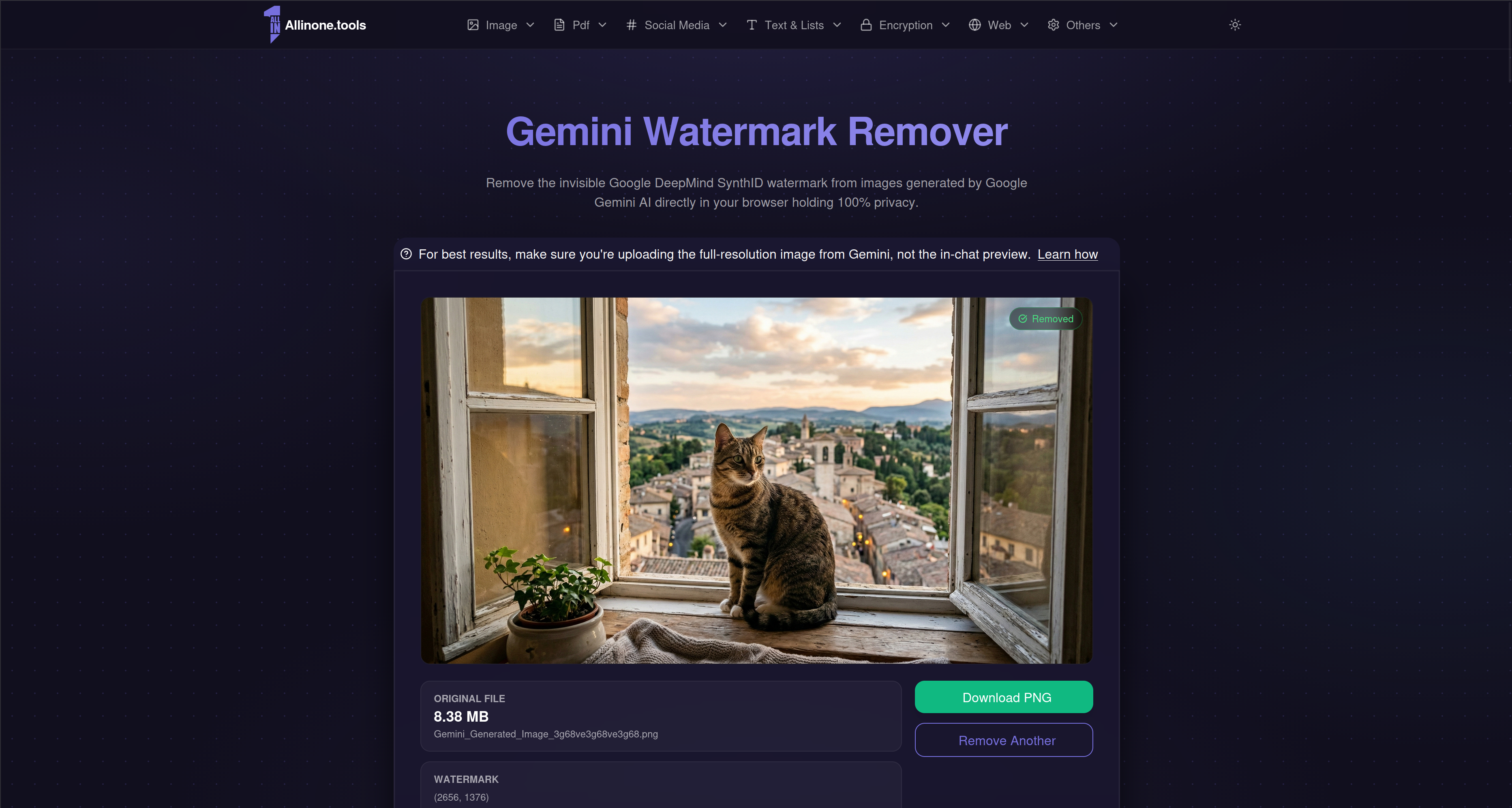
Step 3: Download Your Clean Image
The tool processes your image in seconds. The watermark is gone, and the pixels underneath are mathematically restored to their original values. Click download to save your clean image individually, or grab all processed images at once if you uploaded a batch.
Your output image keeps the same resolution, format, and quality as the original. Nothing is compressed or downscaled during processing.

That's it. Three steps, no account, no payment, no waiting.
Why this works so well: Gemini's visible watermark uses alpha blending, a technique that layers the sparkle mark over your image with partial transparency. The reverse alpha blending formula (
original_pixel = (watermarked_pixel - alpha x watermark_pixel) / (1 - alpha)) mathematically reverses this process pixel by pixel. The result is near-perfect reconstruction of the original image data, not an AI-generated guess of what the pixels should look like.
Other Ways to Remove Gemini Watermark
The allinone.tools gemini watermark remover is the fastest option, but here are a few alternatives if you want to explore other approaches.
Crop the Watermark Out
Since Gemini always places the watermark in the bottom-right corner, you can simply crop that area off. Open the image in any photo editor, select the crop tool, and trim the bottom-right section where the sparkle appears.
The downside: You lose part of your image. If the watermark sits on top of an important detail like a face, text, or a key element of the composition, cropping removes that content permanently.
The prompt trick: Before generating your image in Gemini, add instructions like "leave blank space at the bottom of the image." This pushes the watermark into empty space you can safely crop away. It's clever, but it limits your creative control and doesn't help with images you've already generated.
Use a Photo Editor's Eraser Tool
Most modern photo editors offer some form of content-aware fill or generative eraser that can paint over the watermark:
- Windows Photos has a built-in Erase tool under Edit
- Google Photos has a Magic Eraser on Pixel devices and Google One subscribers
- Photoshop offers Content-Aware Fill and Generative Fill
- Canva has a Magic Eraser in its Pro plan
These tools work by guessing what's behind the watermark using AI inpainting. Results vary depending on what's underneath. Simple, solid backgrounds look fine. But detailed textures, patterns, or gradients may show visible artifacts or smudging where the watermark was. You also need a paid subscription for most of these tools.
Screenshot and Re-crop
Taking a screenshot of the image and cropping out the watermark area is the quickest workaround. But you'll lose resolution since screenshots capture screen pixels, not the original file's full quality. You may also change the aspect ratio.
This approach is fine for a quick social post, but not for anything where image quality matters.
Can You Remove the Invisible SynthID Watermark?
Short answer: no, and you probably don't need to.
SynthID is embedded at the pixel level across the entire image. It's not a logo sitting in one corner that you can erase. It's not metadata you can strip by re-saving the file. The watermark signal is distributed throughout the image data itself and is designed to survive cropping, resizing, compression, format conversion, and even screenshots.
Google built SynthID this way on purpose. It allows anyone to verify whether an image was AI-generated by uploading it to detection tools or even asking the Gemini app directly: "Was this created with Google AI?"
But here's what actually matters for most people: SynthID doesn't affect how your image looks. It's completely invisible to the human eye. No one scrolling past your image on social media or sitting in your presentation audience will ever notice it. It only becomes relevant when someone deliberately runs the image through a specialized detection tool.
If your goal is a clean-looking image for a slide deck, social media post, blog graphic, or personal project, removing the visible sparkle watermark is all you need. The allinone.tools Gemini Watermark Remover handles exactly that, instantly and for free.
Troubleshooting Common Issues
Problem: A faint outline remains where the watermark was This can happen with heavily compressed JPEG images where the compression artifacts interact with the watermark area. Try saving your Gemini image as PNG before processing for the cleanest results.
Problem: The tool doesn't detect a watermark Make sure you're uploading an unedited Gemini image. If you've already cropped, resized, or re-saved the image through another tool, the watermark pattern may be altered enough that the algorithm can't match it precisely.
Problem: File too large to upload Most gemini watermark cleaner tools have file size limits. The allinone.tools remover handles standard Gemini output sizes without issues. If you're working with an unusually large image, try converting from PNG to JPEG first to reduce file size.
Remove Your Gemini Watermark Right Now
You don't need to install software, create an account, or watch a tutorial video. Open the free Gemini Watermark Remover, upload your image, and download the clean version. It takes less than 10 seconds.